I was recently asked by a collegue of mine to see if I could help him move the custom EPiServer image map property to his current EPiServer 5 project (originally built for EPiServer CMS 6, see EPiServer custom property: Allowing web editors to create image maps with flexible hot spot areas). There were a few issues with the JavaScript not working as intended, as well as some CSS and images needing attention. I will not be adding more code to GitHub for this, but rather describe what will have to be done getting this to work.
EPiServer 5 Edit tab: JavaScript changes to image-map.js
Assuming that you have added the original code to your EPiServer 5 project and changed all the paths and namespaces as specified in the readme file, open the JavaScript file image-map.js and scroll down to the function handling the selector dialog for the image; called selectImageMapImage. There are changes made to the callback function for the EPiServer file manager dialog between the versions.
Original code from image-map.js
function selectImageMapImage(evt, urlInput) {
  epiFileManagerDialog(urlInput.val(), function (a, b) {
    if (a.closeAction == 'insert') {
      var selectedPath = a.items[0].path;
      urlInput.val(selectedPath);
      EPi.PageLeaveCheck.SetPageChanged(true);
    } else if (a.closeAction == 'clear') {
      clearImageMapUrl();
      EPi.PageLeaveCheck.SetPageChanged(true);
    }
    refreshPreviewImageFromControl();
    refreshImageUrlJson();
  });
};
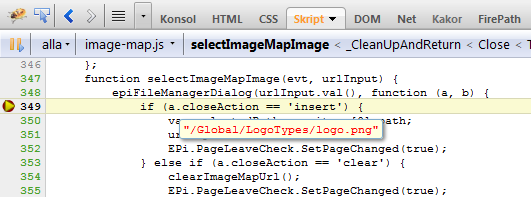
The problem here is that the argument a in the EPiServer 6 version of the function did not have items nor a closeAction in EPiServer 5; instead it was the path to the selected file itself or -1 if the user clicks the Clear button in the EPiServer file manager dialog. In the same way, clicking the Cancel button will return a 0 (zero). So in order to remedy this condition a few changes to the function are necessary.
EPiServer 5 version of the code
function selectImageMapImage(evt, urlInput) {
  epiFileManagerDialog(urlInput.val(), function (selectedPath, b) {
    if (isNaN(selectedPath)) {
      urlInput.val(selectedPath);
      EPi.PageLeaveCheck.SetPageChanged(true);
    } else if (selectedPath == '-1') {
      clearImageMapUrl();
      EPi.PageLeaveCheck.SetPageChanged(true);
    }
    refreshPreviewImageFromControl();
    refreshImageUrlJson();
  });
};
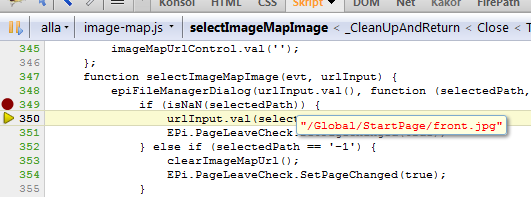
The input parameter a (348) has changed name to better reflect what it really is, and the two if-conditions (349 and 352) are also new. For the insert clause we will allow anything that is Not a Number, which will be all of our image paths. The clear condition is handled in the next statement, and as for Cancel, it will just pass through quietly.
EPiServer styles: Other CSS, other images
The next thing to fix is the look and feel of the plug-in. Add the following style to the ImageMapEditModeControl.aspx; or to your own style file if you have moved the CSS.
Additions in ImageMapEditModeControl.aspx
div.image-map-preview-container {
  margin-bottom: 10px;
}
input.epi-cmsButton-tools.epi-cmsButton-Add {
  background: url("/App_Themes/Default/Images/Tools/Add.gif") no-repeat scroll left center transparent;
  padding-left: 18px;
}
input.epi-cmsButton-tools.epi-cmsButton-Up {
  background: url("/App_Themes/Default/Images/Tools/Up.gif") no-repeat center transparent;
  width: 22px;
}
input.epi-cmsButton-tools.epi-cmsButton-Down {
  background: url("/App_Themes/Default/Images/Tools/Down.gif") no-repeat center transparent;
  width: 22px;
}
input.epi-cmsButton-tools.epi-cmsButton-Edit {
  background: url("/App_Themes/Default/Images/Tools/Edit.gif") no-repeat center transparent;
  width: 22px;
}
input.epi-cmsButton-tools.epi-cmsButton-Delete {
  background: url("/App_Themes/Default/Images/Tools/Delete.gif") no-repeat center transparent;
  width: 22px;
}
table.epi-default {
  border: 1px solid gray;
  margin-top: 10px;
}
Notice that you already have a rule for the class image-map-preview-container which may be merged if you’d like; it is added separately to make this addition cleaner. You will also have to add the EPiServer CSS class epitoolbutton to one of the span-tags in the same file (line 69 below); the container span for the New hot spot button.
<div class="hot-spot-controls">
 <div class="epi-buttonDefault">
  <span class="epi-cmsButton epitoolbutton">
   <input type="button"
          id="new-hot-spot-button-<%= UniqueIdentifier %>"
          onmouseout="EPi.ToolButton.ResetMouseDownHandler(this)"
          onmouseover="EPi.ToolButton.MouseDownHandler(this)"
          value="New hot spot"
          name="addHotSpot"
          class="epi-cmsButton-text epi-cmsButton-tools epi-cmsButton-Add">
   </span>
  </div>
You will also need to add this CSS class to the span tags containing the control buttons (line 5 below); to do this you will have to edit the image-map.js script file again.
Addition to image-map.js
var ImageMap = ImageMap || {};

ImageMap.EPiServerButtons = ImageMap.EPiServerButtons || function () {
    function createEPiServerButton(text, cssClass, callbackFunction) {
        return $("<span class='epi-cmsButton epitoolbutton'></span>")
                .append($("<input type='button'></input>")
                    .val(text)
                    .addClass(["epi-cmsButton-tools", cssClass].join(' '))
                    .mouseover(function () { EPi.ToolButton.MouseDownHandler(this); })
                    .mouseout(function () { EPi.ToolButton.ResetMouseDownHandler(this); })
                    .click(callbackFunction)
                );
    };
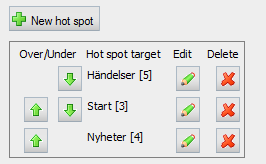
Styles for the hot spot manager window
In a similar manner you will have to add classes and styles to the HotSpotEditor.aspx file as well; or to your own CSS file if you have moved the styles. Add the following CSS to your code.
Additions in HotSpotEditor.aspx
span.epi-cmsButton.epitoolbutton {
  margin-right: 10px;
}
input.epi-cmsButton-tools.epi-cmsButton-Save {
  background: url("/App_Themes/Default/Images/Tools/Save.gif") no-repeat scroll left center transparent;
  padding-left: 18px;
}
input.epi-cmsButton-tools.epi-cmsButton-Cancel {
  background: url("/App_Themes/Default/Images/Tools/Cancel.gif") no-repeat scroll left center transparent;
  padding-left: 18px;
}
The CSS class that you will have to add to the span is the same one as in the previous file; epitoolbutton. It should be added to the two container span tags (lines 66 and 69 below) a bit further down the code.
<div style="clear: both;">
 <div style="position: absolute; right: 0;">
   <span class="epi-cmsButton epitoolbutton">
     <input id="save-button" type="button" class="epi-cmsButton-text epi-cmsButton-tools epi-cmsButton-Save" onmouseover="EPi.ToolButton.MouseDownHandler(this)" onmouseout="EPi.ToolButton.ResetMouseDownHandler(this)" value="Save" />
   </span>
   <span class="epi-cmsButton epitoolbutton">
     <input id="cancel-button" type="button" class="epi-cmsButton-text epi-cmsButton-tools epi-cmsButton-Cancel" onmouseover="EPi.ToolButton.MouseDownHandler(this)" onmouseout="EPi.ToolButton.ResetMouseDownHandler(this)" value="Cancel" />
   </span>
  </div>
</div>